dialogs.py#
dialogs.py
Running the UI commands
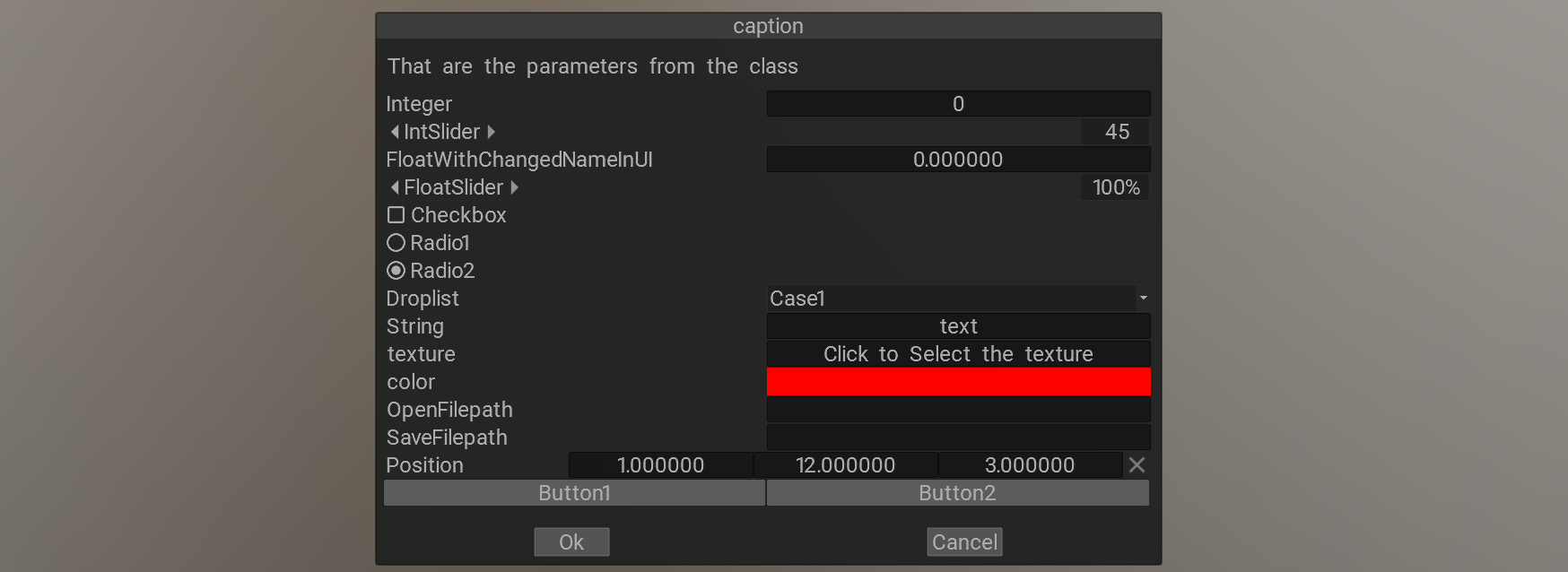
1# This example demonstrates the power of the dialogs and UI. It describes how to register the elements into the UI.
2import coat
3
4# This example demonstrates the dialogs power. What we do?
5# Try to load previously stored settings, show dialog, save settings if user pressed Ok
6
7# let's define the class. Then we create the ui function that exposes the ui elements list
8
9class MyClass :
10 def __init__(self) :
11 self.Integer = 0
12 self.IntSlider = 0
13 self.Float = 0.0
14 self.FloatSlider = 0.5
15 self.Checkbox = False
16 self.Radio1 = True
17 self.Radio2 = False
18 self.Droplist = 0
19 self.String = "text"
20 self.Coordinate = coat.vec3(1, 2, 3)
22 self.String = ''
23 self.OpenFilepath = ''
24 self.SaveFilepath = ''
25 self.Droplist = "Case2"
26 self.idx=1
27 self.items=[]
28
29 def One(self) :
30 self.Coordinate = coat.vec3(1)
31
32 def Two(self) :
33 self.Coordinate = coat.vec3(2)
34
35 def ZeroCoordinate(self) :
36 self.Coordinate = coat.vec3(0)
37
38 def add(self):
39 self.items.append(Item(self.idx))
40 self.idx+=1
41
42 # this section used for the class serialization and visual presentation in the UI
43 # pay attention that visualization and serialization may be separated if need.
44 def ui(self) :
45 # there you define the list of variables and functions to show in the dialog.
46 # This list is dynamic, this function is constantly called, any changes in list
47 # will be exposed immediately
48 return [
49 "#image:data/StartMenu/images/header.png", # the image example
50 "#Just centered text message there", # centered text
51 "#*Left-aligned text", # left-aligned text
52 "Integer", # we write there the name of variable we want to expose to the UI
53 "IntSlider,[0,100]", # this is the integer slider definition
54 "Float, Rename variable in UI if need", # we may use different name for the variable in UI
55 "FloatSlider,[-1,1]", # we defined range there
56 "Checkbox", # boolean variables visible as checkboxes
57 "Radio1, group1", # the radio button, we set the group there
58 "Radio2, group1", # same group for radio button
59 "Droplist,[Case1|Case2|Case3]",
60 "Color, color", # the color value editor
61 "OpenFilepath,load:*.tif;*.tiff;*.exr;*.tga;*.bmp;*.png", # the open file dialog
62 "SaveFilepath,save:*.tif;*.tiff;*.exr;*.tga;*.bmp;*.png", # save file dialog
63 "[1 []]", # the layout control for the next UI items, the number is relative width of each item, the [] means automatical width
65 "ZeroCoordinate,'{maticon close}'", # the X icon. You may refer icons in text using {maticon icon_name}. Look for icons at data/meterial.io/icons/black/
66 "[1 1]", # define 2 columns
67 "One", # set 1 to the vector
68 "Two", # set 2 to the vector
69 "---",
70 "items",
71 "add,'{maticon add}'"
72 ]
73# this chass is example of the list of clases within the parent class. If you prees the add button, the item will appear in the list.
74# Pay attention, the Item.__init__(self) should be callable without additional parameters to be abloe to be savel/loaded as json correctly.
75class Item:
76 def __init__(self, i = 0):
78 self.index = i
79 # remove the element
80 def X(self):
81 p.items.remove(self)
82 # the list of UI elements for the item
83 def ui(self):
84 return [
85 "[[%30] 1 []]",
86 "index,''",
87 "point,''",
88 "X,'{maticon close}'"
89 ]
90
91p = MyClass()
92# restore the object from json if the file exists
94# The on_press called each time user press Ok or other button on the dialog's bottom
95def on_press(button):
96 print("pressed: ", button)
97 if(button == 1) : #Ok pressed
98 # save the settings into the Documents/3DCoat/dialogs.json
100def process_fn():
101 # do some action within the dialog
102 # for exmple, you may click over some controls within the dialog
103 # like coat.ui.cmd("$BaseClass::Integer")
104 p.Float+=1
105
106
107# show the dialog
108coat.dialog().ok().cancel().params(p).caption("caption").process(process_fn).onPress(on_press).show(); # the on_press will be called when used press ok(1) or cancel(2)
  1     # This example demonstrates the power of the dialogs and UI. It describes how to register the elements into the UI.
  2     import coat
  3
  4     # This example demonstrates the dialogs power. What we do?
  5     # Try to load previously stored settings, show dialog, save settings if user pressed Ok
  6
  7     # let's define the class. Then we create the ui function that exposes the ui elements list
  8
  9     class MyClass :
 10             def __init__(self) :
 11                     self.Integer = 0
 12                     self.IntSlider = 0
 13                     self.Float = 0.0
 14                     self.FloatSlider = 0.5
 15                     self.Checkbox = False
 16                     self.Radio1 = True
 17                     self.Radio2 = False
 18                     self.Droplist = 0
 19                     self.String = "text"
 20                     self.Coordinate = coat.vec3(1, 2, 3)
 21                     self.Color = 'FF0000' # red
 22                     self.String = ''
 23                     self.OpenFilepath = ''
 24                     self.SaveFilepath = ''
 25                     self.Droplist = "Case2"
 26                     self.idx=1
 27                     self.items=[]
 28
 29             def One(self) :
 30                     self.Coordinate = coat.vec3(1)
 31
 32             def Two(self) :
 33                     self.Coordinate = coat.vec3(2)
 34
 35             def ZeroCoordinate(self) :
 36                     self.Coordinate = coat.vec3(0)
 37
 38             def add(self):
 39                     self.items.append(Item(self.idx))
 40                     self.idx+=1
 41
 42             # this section used for the class serialization and visual presentation in the UI
 43             # pay attention that visualization and serialization may be separated if need.
 44             def ui(self) :
 45                     # there you define the list of variables and functions to show in the dialog.
 46                     # This list is dynamic, this function is constantly called, any changes in list
 47                     # will be exposed immediately
 48                     return [
 49                             "#image:data/StartMenu/images/header.png", # the image example
 50                             "#Just centered text message there", # centered text
 51                             "#*Left-aligned text", # left-aligned text
 52                             "Integer", # we write there the name of variable we want to expose to the UI
 53                             "IntSlider,[0,100]", # this is the integer slider definition
 54                             "Float, Rename variable in UI if need", # we may use different name for the variable in UI
 55                             "FloatSlider,[-1,1]", # we defined range there
 56                             "Checkbox", # boolean variables visible as checkboxes
 57                             "Radio1, group1", # the radio button, we set the group there
 58                             "Radio2, group1", # same group for radio button
 59                             "Droplist,[Case1|Case2|Case3]",
 60                             "Color, color", # the color value editor
 61                             "OpenFilepath,load:*.tif;*.tiff;*.exr;*.tga;*.bmp;*.png", # the open file dialog
 62                             "SaveFilepath,save:*.tif;*.tiff;*.exr;*.tga;*.bmp;*.png", # save file dialog
 63                             "[1 []]", # the layout control for the next UI items, the number is relative width of each item, the [] means automatical width
 64                             "Coordinate", # the vec3 representation
 65                             "ZeroCoordinate,'{maticon close}'", # the X icon. You may refer icons in text using {maticon icon_name}. Look for icons at data/meterial.io/icons/black/
 66                             "[1 1]", # define 2 columns
 67                             "One", # set 1 to the vector
 68                             "Two", # set 2 to the vector
 69                             "---",
 70                             "items",
 71                             "add,'{maticon add}'"
 72                     ]
 73     # this chass is example of the list of clases within the parent class. If you prees the add button, the item will appear in the list.
 74     # Pay attention, the Item.__init__(self) should be callable without additional parameters to be abloe to be savel/loaded as json correctly.
 75     class Item:
 76             def __init__(self, i = 0):
 77                     self.point = coat.vec3.RandNormal()
 78                     self.index = i
 79             # remove the element
 80             def X(self):
 81                     p.items.remove(self)
 82             # the list of UI elements for the item
 83             def ui(self):
 84                     return [
 85                             "[[%30] 1 []]",
 86                             "index,''",
 87                             "point,''",
 88                             "X,'{maticon close}'"
 89                             ]
 90
 91     p = MyClass()
 92     # restore the object from json if the file exists
 93     coat.io.fromJsonFile(p,"dialogs.json")
 94     # The on_press called each time user press Ok or other button on the dialog's bottom
 95     def on_press(button):
 96             print("pressed: ", button)
 97             if(button == 1) : #Ok pressed
 98                     # save the settings into the Documents/3DCoat/dialogs.json
 99                     coat.io.toJson(p,"dialogs.json")
100     def process_fn():
101             # do some action within the dialog
102             # for exmple, you may click over some controls within the dialog
103             # like coat.ui.cmd("$BaseClass::Integer")
104
105             p.Float+=1
106
107
108
109
110
111     # show the dialog
112     coat.dialog().ok().cancel().params(p).caption("caption").process(process_fn).onPress(on_press).show(); # the on_press will be called when used press ok(1) or cancel(2)